
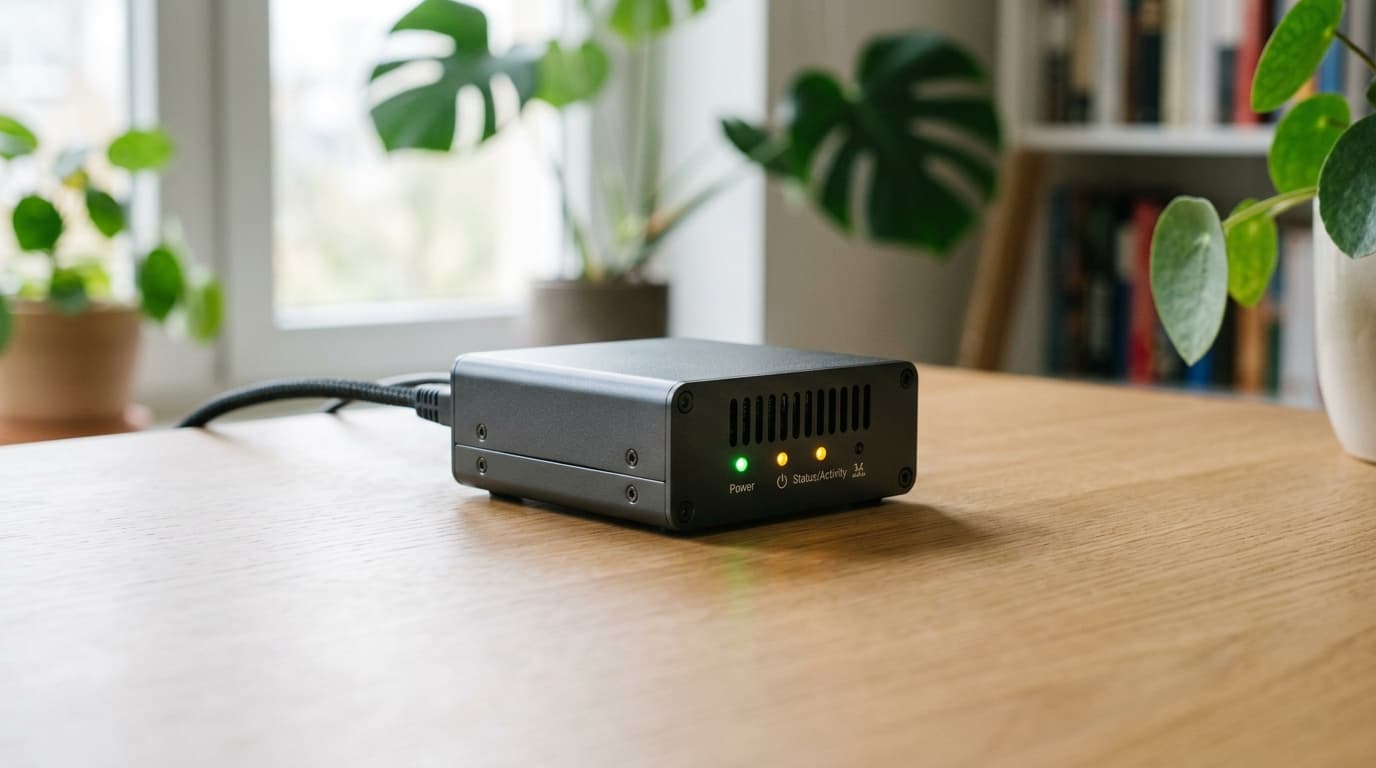
How to Install Bitcoin Core Node on Start9 Without Command Line
Step-by-step guide to running a sovereign Bitcoin Core node on Start9's StartOS using only point-and-click interfaces. No terminal required.
Running your own Bitcoin node used to mean wrestling with command line interfaces, configuring firewalls, and debugging obscure error messages. For most people, that barrier kept sovereign node operation firmly in the "someday" category. Start9 changed that equation by packaging Bitcoin Core into a graphical installation that works like downloading an app on your phone.
Here's how to go from zero to running node without ever opening a terminal.
What You'll Need Before Starting
Start9 sells pre-configured hardware (the Start9 Server), but StartOS also runs on various mini PCs, Intel NUCs, and even Raspberry Pi 4/5 devices. If you're building your own, the key requirements are sufficient storage (at least 1TB for a full archival node, or less if you're comfortable with pruned mode) and a stable internet connection.
Assuming you already have StartOS installed and can access your server's web dashboard from a browser, you're ready to proceed.
Step 1: Access the Marketplace
Open your StartOS dashboard in any web browser. This is the graphical interface you'll use for everything, no SSH required. On the left navigation menu, click Marketplace.
The default Start9 registry contains curated services that have been packaged to work seamlessly with StartOS. Bitcoin Core is prominently featured since it's foundational infrastructure for many other services.
Step 2: Find and Install Bitcoin Core
In the Marketplace search bar, type "Bitcoin" or "Bitcoin Core." Click on the Bitcoin Core listing to see version information and resource requirements.
Hit Install. StartOS downloads the package and handles all the underlying setup, including directory creation, configuration files, and Tor networking. This typically takes a few minutes depending on your internet speed.
Step 3: Configure Your Node
After installation completes, you'll see Bitcoin Core appear in your Services list. Before starting it, click into the service and select Config.
Here you'll make one important decision: archival mode or pruned mode.
Archival mode stores the complete blockchain (currently over 500GB and growing). This allows you to serve historical blocks to other nodes and is required if you want to run certain services like Electrs for full wallet history lookup.
Pruned mode keeps only recent blocks, dramatically reducing storage requirements but limiting some functionality. If storage is tight, pruned mode still gives you full validation of new transactions and blocks.
For most users starting out, the defaults work well. You can adjust RPC settings here too if you have specific needs, but the pre-configured options handle typical use cases.
Step 4: Start the Service
Click Start. Bitcoin Core begins its initial block download (IBD), syncing the entire blockchain from the network. This is the longest part of the process.
On modern hardware with a solid SSD and decent internet, expect IBD to take anywhere from 12 hours to several days. StartOS shows sync progress directly in the dashboard. You can close your browser and come back; the sync continues in the background.
Step 5: Connect Your Wallet
Once synced (the service status will show "Running" with no sync percentage), you can connect external wallets to your node.
Navigate to your Bitcoin Core service and click Properties. Here you'll find connection credentials including Tor addresses and QR codes. For wallets like Sparrow, you can scan the QR directly to configure the connection.
Click Interfaces to see the specific Tor onion address your node uses. This allows your wallet to connect from anywhere, not just your local network, while maintaining privacy through Tor's routing.
Adding Electrs for Better Wallet Compatibility
Bitcoin Core's native RPC works with some wallets, but many modern wallets expect an Electrum-style server. For broader compatibility, return to the Marketplace and install Electrs.
Electrs indexes the blockchain in a way that allows wallets to query address histories efficiently. Like Bitcoin Core, it's a point-and-click install. Once running, it automatically connects to your local Bitcoin Core instance and builds its index. This adds another sync period (usually faster than IBD) but dramatically expands which wallets you can use with your node.
What's Happening Under the Hood
StartOS handles several technical details automatically:
Tor networking: Your node communicates over Tor by default, keeping your home IP address private and allowing connections from anywhere without port forwarding.
Service integration: When you install Electrs or Lightning implementations later, StartOS automatically configures them to talk to your Bitcoin Core instance.
Backups: The dashboard includes backup functionality for service data, no rsync commands required.
Updates: When new versions of Bitcoin Core are released and packaged for StartOS, you'll see update notifications in the dashboard.
Troubleshooting Common Issues
If sync seems stuck, check that your server has adequate storage headroom. SSDs perform dramatically better than HDDs for blockchain operations; if you're using spinning disks, expect much longer sync times.
Connection issues with external wallets usually come down to Tor. Some wallet apps handle Tor better than others. Sparrow Wallet has consistently good Tor support for connecting to self-hosted nodes.
For users who want more advanced options, there's a hidden "developer mode" (accessed by clicking "Manage" five times) that unlocks features like switching to Bitcoin Knots, an alternative implementation. But this isn't necessary for standard operation.
The Bigger Picture
Running your own node means you verify every transaction and block yourself rather than trusting someone else's server. It's the difference between "Bitcoin says" and "I verified." That verification happens automatically once your node is running, quietly validating the chain 24/7.
Start9's approach removes the technical gatekeeping that historically limited self-sovereignty to those comfortable with Linux administration. Whether that tradeoff (convenience vs. deep system understanding) is worthwhile depends on your goals. Power users might still prefer manual setups for maximum control. But for most people who simply want the benefits of running their own node, the point-and-click path gets you there with far less friction.
Your node, your rules, no command line required.