
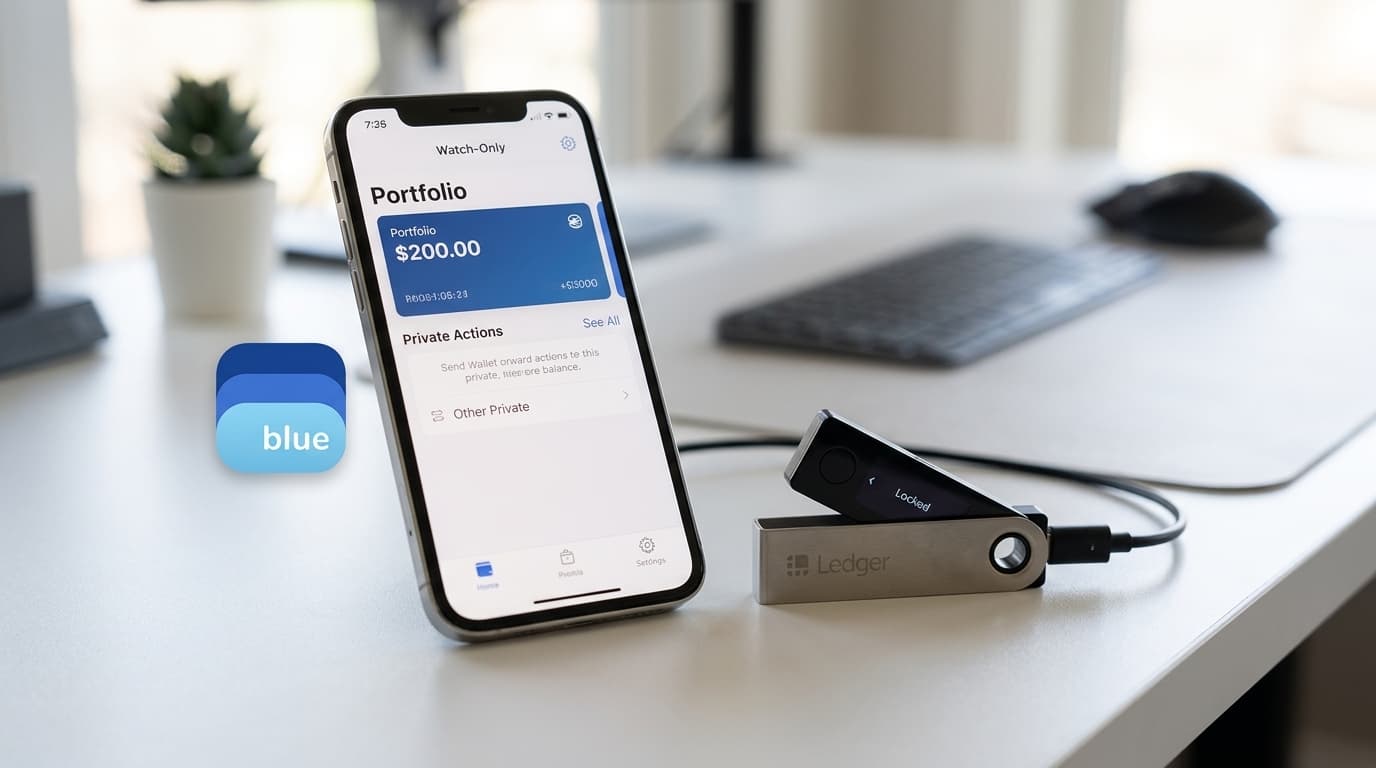
How to Set Up Watch-Only Mode in BlueWallet for Hardware Wallet Monitoring
Learn to configure BlueWallet's watch-only feature to monitor hardware wallet balances and generate addresses without exposing private keys.
Your hardware wallet sits in a safe, air-gapped and secure. But checking your balance means digging it out, plugging it in, and navigating through menus. There's a better way: watch-only mode lets you monitor your cold storage from your phone without ever exposing your private keys.
BlueWallet offers one of the cleanest implementations of this concept. By importing just your public key information, you can track balances, generate receiving addresses, and even construct unsigned transactions for later signing on your hardware device. Your actual spending keys never touch a network-connected device.
What Watch-Only Mode Actually Does
A watch-only wallet contains only your extended public key (xpub, ypub, or zpub), not your private key. This distinction matters enormously for security.
With the public key, BlueWallet can:
- Display your current balance across all addresses
- Generate new receiving addresses for incoming payments
- Show your complete transaction history
- Create unsigned transactions (PSBTs) for offline signing
What it cannot do is equally important: sign transactions or move your funds. Even if your phone is compromised, an attacker gains no ability to spend your bitcoin. They could see your balance, but your private keys remain safely on your hardware wallet.
Step-by-Step Setup Guide
Step 1: Export Your Public Key from Your Hardware Wallet
Before touching BlueWallet, you need to export your extended public key from your hardware wallet. The exact process varies by device:
Coldcard: Navigate to Advanced > MicroSD Card > Export Wallet > Generic JSON. This creates a file containing your zpub.
Ledger: Use Ledger Live to export your xpub under account settings.
Trezor: Access your xpub through Trezor Suite's wallet details.
Keystone/Cobo Vault: These devices can display your public key as a QR code, making import even easier.
Most modern hardware wallets export a zpub (for native SegWit addresses starting with bc1), though you may also encounter xpub (legacy) or ypub (wrapped SegWit) formats. BlueWallet supports all three.
Step 2: Create the Watch-Only Wallet in BlueWallet
Open BlueWallet and tap the plus icon to add a new wallet. Select "Import wallet" rather than creating a new one.
You have two options here:
Scan a QR code: If your hardware wallet displays the public key as a QR code, this is the fastest method. Tap the scan icon and point your camera at the code.
Paste or type the key: If you exported to a file or copied the text, paste your xpub/ypub/zpub directly into the text field.
BlueWallet will recognize the key format and create a watch-only wallet. You'll see a small eye icon indicating its watch-only status.
Step 3: Enable Hardware Wallet Mode (Optional but Recommended)
If you plan to sign transactions with your hardware wallet, take one additional step. Open your new watch-only wallet, tap the three dots menu, and access wallet settings. Toggle on "Hardware Wallet" mode to enable PSBT (Partially Signed Bitcoin Transaction) support.
This unlocks the full air-gapped workflow: construct a transaction in BlueWallet, export it as a PSBT file, sign it offline on your hardware wallet, then import the signed transaction back for broadcast.
The Air-Gapped Transaction Workflow
Watch-only mode truly shines when combined with PSBT support for spending. Here's how the complete workflow functions:
- Construct the transaction: In BlueWallet's watch-only wallet, tap Send and enter the recipient address and amount. The app builds a valid transaction structure but cannot sign it.
- Export the unsigned transaction: BlueWallet presents the PSBT as a QR code or file. For Coldcard users, export to a microSD card. For devices like Keystone, scan the animated QR code directly.
- Sign on your hardware wallet: Insert the microSD into your Coldcard (or scan the QR with Keystone) and sign the transaction. The hardware wallet adds the cryptographic signature using your private key, which never leaves the device.
- Import and broadcast: Transfer the signed transaction back to BlueWallet via QR code or file. The app verifies the signature and broadcasts the transaction to the Bitcoin network.
Your private keys remain completely air-gapped throughout this process. The hardware wallet never connects to the internet, and BlueWallet never possesses signing capability.
Privacy Considerations
BlueWallet's documentation indicates the app takes steps to protect privacy by sharing only necessary address information with its servers rather than broadcasting your entire xpub. However, for maximum privacy, consider connecting BlueWallet to your own Electrum server. This prevents any third party from correlating your addresses.
The app also supports Tor connectivity for additional network-level privacy. Both options are available in BlueWallet's settings for users who want them.
Supported Hardware Wallets
BlueWallet's PSBT implementation works with all major hardware wallet brands that support the standard:
- Coldcard: Full microSD card workflow support
- Ledger Nano: Works via Ledger Live export
- Trezor: Compatible through Trezor Suite
- Keystone: QR code-based air-gapped signing
- Cobo Vault: Similar QR workflow to Keystone
Because PSBT is an open standard (BIP 174), any compliant hardware wallet should work, even newer devices not specifically listed here.
Common Questions
Can someone steal my bitcoin if they access my watch-only wallet?
No. They could see your balance and addresses, but without the private key (which exists only on your hardware wallet), they cannot sign any transaction to move funds.
Will the watch-only wallet show all my addresses?
Yes. The extended public key allows BlueWallet to derive all current and future addresses in that wallet's derivation path. This is how it calculates your total balance.
Can I use watch-only mode for multiple hardware wallets?
Absolutely. Create separate watch-only wallets in BlueWallet for each hardware wallet you own. This gives you a unified view of your entire cold storage portfolio.
What if I lose my phone?
Your bitcoin remains secure on your hardware wallet. The watch-only wallet on BlueWallet contained no spending capability. Simply set up watch-only mode again on a new device.
When Watch-Only Mode Makes Sense
This setup works best for people who:
- Hold significant amounts in hardware wallet cold storage
- Want to check balances without accessing the hardware device
- Regularly receive payments to their cold storage addresses
- Prefer constructing transactions on mobile before signing offline
For small amounts you spend frequently, a regular hot wallet in BlueWallet makes more sense. Watch-only mode adds steps to every transaction, which is worthwhile for security but unnecessary for pocket change.
The combination of hardware wallet security with mobile convenience represents one of the better compromises in bitcoin self-custody. Your keys stay cold, but you're never in the dark about your balance.