
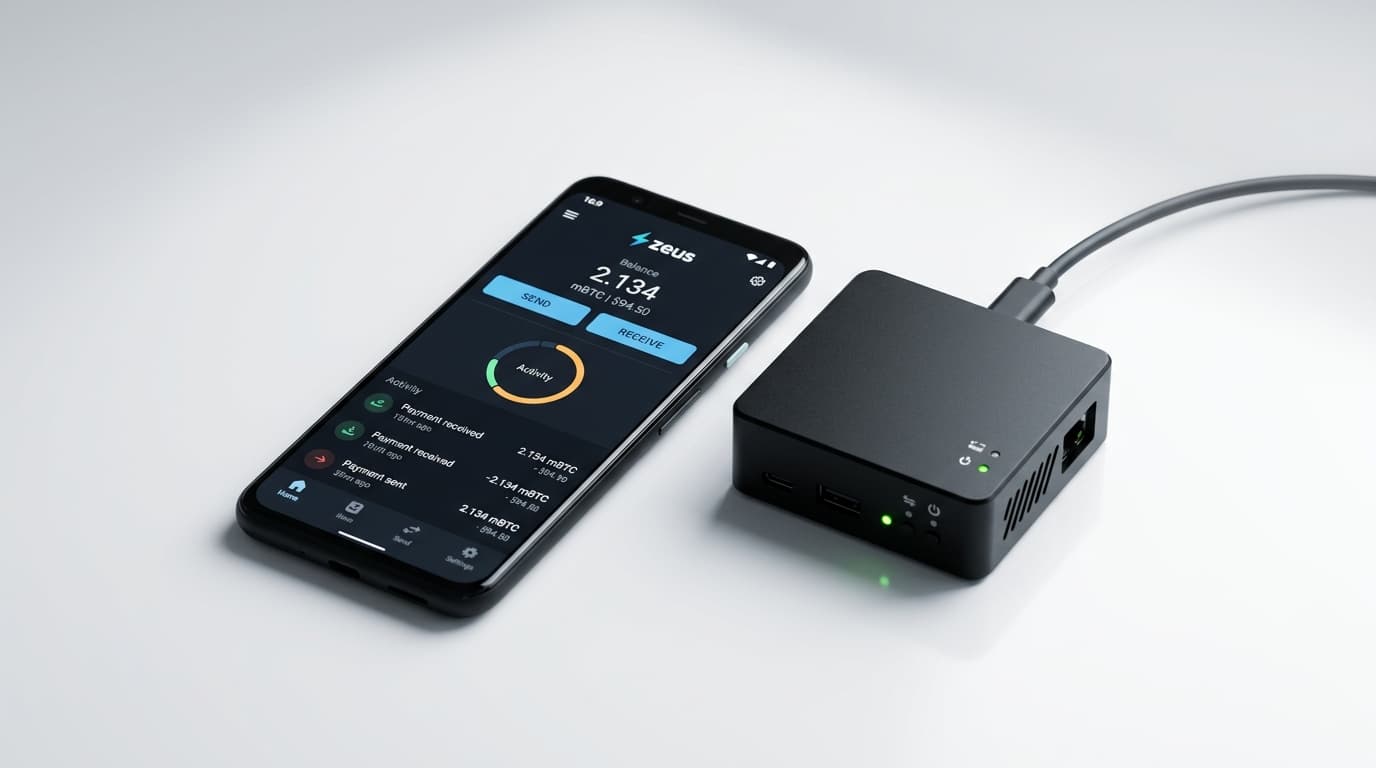
How to Set Up Zeus Wallet with Your Own Lightning Node
Step-by-step guide to connecting Zeus Wallet to your Umbrel, StartOS, or home Lightning node for self-custodial mobile access.
Running your own Lightning node is only half the equation. The other half is being able to actually use it from your phone without handing your keys to a third party. Zeus bridges that gap, giving you a mobile interface to your home node while keeping everything self-custodial and KYC-free.
This guide walks through connecting Zeus to your own LND or Core Lightning node, whether you're running Umbrel, StartOS, RaspiBlitz, myNode, or a custom setup. The process differs slightly depending on your node implementation, but the core principles remain the same: authenticate securely, route through Tor for privacy, and manage your channels from anywhere.
What You'll Need Before Starting
Before diving into configuration, make sure you have:
- A running Lightning node (LND or Core Lightning) with channels open
- Zeus Wallet installed on your Android or iOS device
- Your node accessible via Tor (most home node packages enable this by default)
- Access to your node's terminal or admin interface for generating credentials
For mainnet use, you'll want at least one channel with meaningful capacity. Most guides recommend a minimum of 0.01 BTC (1 million sats) per channel to handle typical payment routing.
Connecting to an LND Node
LND remains the most common Lightning implementation for home users, and Zeus supports it through the REST interface with macaroon authentication.
Step 1: Enable the REST Interface
Most node packages (Umbrel, myNode, RaspiBlitz) already have REST enabled. If you're running a custom LND setup, verify your `lnd.conf` includes:
```
restlisten=0.0.0.0:8080
```
Step 2: Generate an lndconnect QR Code
The easiest method uses the `lndconnect` tool to create a QR code containing your connection details. On your node, run:
```
lndconnect --host=<your-tor-onion-address> --port=8080
```
This generates a QR code that bundles your hostname, port, and macaroon into a single scannable image. If you're using Umbrel or StartOS, look for a "Connect Wallet" option in the Lightning app's settings, which typically provides this QR directly.
Step 3: Scan in Zeus
Open Zeus, tap the node icon in the top left, then select "Add a new node." Choose "Scan lndconnect config" and point your camera at the QR code. Zeus will populate all fields automatically.
If your node runs behind Tor (which it should for remote access), toggle the Tor option in Zeus before saving. The app handles Tor routing internally on most devices.
Step 4: Test the Connection
After saving, Zeus will attempt to connect. A successful connection shows your node's alias, channel balances, and transaction history. If it fails, common culprits include:
- Tor not enabled in Zeus settings
- Firewall blocking the REST port
- Expired or incorrect macaroon
Connecting to Core Lightning
Core Lightning (CLN) requires a different approach, using the clnrest plugin and rune-based authentication. Recent Zeus updates (including v0.11.3 from August 2025) have significantly improved CLN support.
Step 1: Install and Configure clnrest
The clnrest plugin exposes a REST API for Core Lightning. On Debian-based systems, verify it's installed and running. You'll also need a Tor hidden service configured for the clnrest port (typically 1234).
Step 2: Generate a Rune
Runes provide granular permission control in CLN. Generate one via:
```
lightning-cli createrune
```
Copy the resulting rune string. Unlike macaroons, runes are text-based and can be restricted to specific commands if desired.
Step 3: Configure Zeus for CLN
In Zeus, add a new node and select "CLNRest" as the interface type. Enter:
- Host: Your Tor onion address
- Port: 1234 (or whatever port clnrest uses)
- Rune: The string from step 2
Enable Tor and save. Zeus will connect using the Commando/lnsocket API, which v0.13.1 (released March 2026) further enhanced for reliability.
Managing Channels Remotely
Once connected, Zeus becomes your remote control for Lightning operations. You can:
- Open new channels by entering a peer's public key and specifying capacity
- Close channels cooperatively or force-close if a peer is unresponsive
- Monitor routing to see which payments flow through your node
- Adjust fees to attract or discourage routing through specific channels
The coin control feature lets you select specific UTXOs when opening channels, useful for privacy-conscious users managing multiple funding sources.
Security Considerations
Remote node access introduces attack surface. A few precautions matter:
Always use Tor or a VPN. Exposing your node's REST port directly to the internet invites trouble. Tor hidden services authenticate both ends of the connection without revealing your home IP.
Use limited-permission credentials when possible. LND's bakery lets you create macaroons restricted to specific actions. CLN's runes offer similar granularity. If you only need Zeus for spending (not channel management), create credentials that reflect that.
Back up your node separately. Zeus accesses your node but doesn't back it up. Use your node software's backup features, including static channel backups for LND or the HSMD for CLN.
The Alternative: Zeus Embedded Node
If running your own full node sounds like more infrastructure than you want, Zeus offers an embedded node option that runs a lightweight LND instance directly on your phone. It uses Olympus LSP for 0-conf channel opens, letting you receive payments without waiting for confirmations.
The tradeoff: you're trusting their LSP for initial channel management, and mobile nodes face reliability challenges when your phone sleeps or loses connectivity. For serious Lightning use, a home node with Zeus as the remote interface remains the more robust setup.
What This Gets You
Connecting Zeus to your own node means every payment, every channel open, and every routing decision stays under your control. No KYC, no custodian, no platform risk. The Lightning addresses feature even lets you receive payments to a static address that routes through your infrastructure, useful for merchants or anyone accepting donations.
The setup takes maybe 15 minutes if your node is already running. For anyone who went through the trouble of setting up a home Lightning node, adding Zeus as the mobile layer completes the picture.