
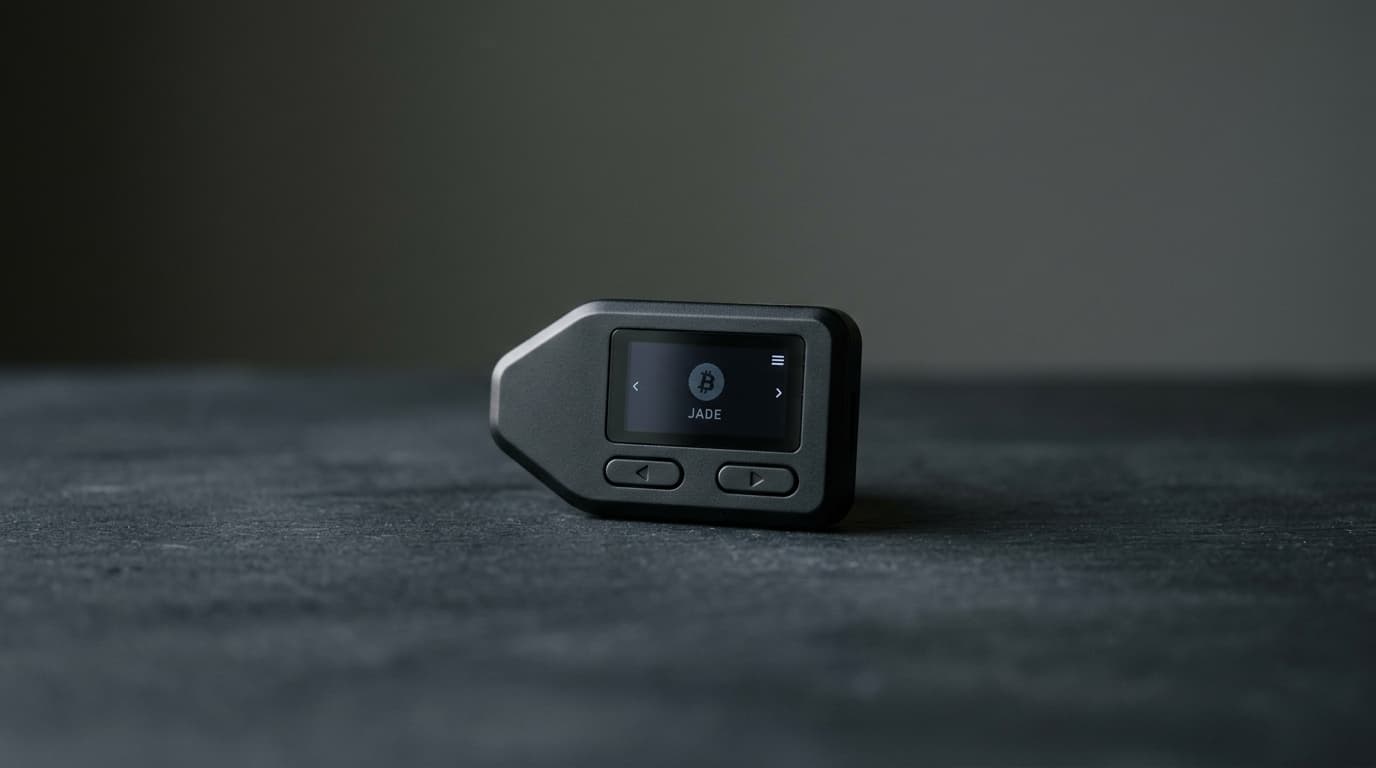
How to Set Up Air-Gapped Signing with Blockstream Jade and Sparrow Wallet
Step-by-step guide to configuring QR-based air-gapped Bitcoin signing with Blockstream Jade and Sparrow Wallet for maximum cold storage security.
Your hardware wallet's private keys never need to touch a computer. That's the core promise of air-gapped signing, and Blockstream Jade paired with Sparrow Wallet delivers one of the most accessible implementations available for Bitcoin cold storage in 2026.
This tutorial walks through the complete setup process, from initial device configuration to signing your first transaction using nothing but QR codes. No USB cable required.
Why Air-Gapped Signing Matters
When you connect a hardware wallet via USB, data flows both directions. Even with secure-element protection, you're trusting that neither the cable, the computer's USB stack, nor any malware on the host can interfere with what gets signed.
Air-gapped signing eliminates that entire attack surface. Jade's camera scans transaction data as QR codes from your computer screen, signs internally, and displays the signed result as QR codes for your computer's webcam to read. The device never physically connects to anything.
For most users, Jade over USB with Sparrow is already reasonably secure. But for high-value cold storage or elevated threat models, the air-gapped approach materially reduces risk. The tradeoff is a slower, more deliberate workflow that requires careful attention during QR scanning.
What You'll Need
- Blockstream Jade or Jade Plus
- Sparrow Wallet installed on your computer (latest version recommended)
- A webcam for your computer to scan QR codes from Jade
- The cardboard CompactSeedQR template included with Jade (optional but recommended for backup)
Step 1: Initialize Jade in Air-Gapped Mode
This is critical: full air-gapped functionality must be configured during initial device setup. If you've already set up your Jade in standard mode, you'll need to factory reset to enable air-gapped features.
Power on your Jade and select Advanced Setup when prompted. This unlocks the air-gapped configuration options.
You have two paths for your seed phrase:
Option A: Generate a New Seed
Let Jade generate a fresh 12 or 24-word mnemonic. Write this down on paper immediately.
Option B: Restore an Existing Seed
Enter your existing recovery phrase word by word, or scan a SeedQR if you have one.
During Advanced Setup, you'll be asked whether to enable CompactSeedQR export. Enable this if you want the option to create a paper QR backup of your seed phrase later, which allows fully offline key material storage.
Step 2: Create Your SeedQR Backup (Optional but Recommended)
With CompactSeedQR enabled, you can export your recovery phrase as a QR pattern and draw it on the cardboard template included with Jade's packaging.
Navigate to Options → Wallet on your Jade and select the export function. Carefully transcribe the QR pattern onto your template using a fine-tip marker.
Here's the important verification step: have Jade's camera scan your hand-drawn QR to confirm you've copied it correctly. This creates a fully offline paper backup that Jade can read later without any digital intermediary.
Step 3: Export Your xPub to Sparrow
Now you'll create a watch-only wallet in Sparrow that can generate addresses and build transactions, but cannot spend without Jade's signature.
On your Jade, navigate to Options → Wallet → Export Xpub. The device will display an animated QR code (multiple frames cycling) containing your extended public key.
In Sparrow Wallet:
- Click File → New Wallet and name it something recognizable
- Select Airgapped Hardware Wallet
- Choose Jade from the device list
- Click Scan
Point your computer's webcam at Jade's screen. Sparrow will capture the animated QR frames automatically. This may take several seconds as it assembles the complete xpub data.
Troubleshooting: Jade Not Listed
On older Sparrow versions, Jade may not appear in the Airgapped Hardware Wallet menu. In this case, select xPub/Watch-Only Wallet instead and scan the QR manually. Updating to the latest Sparrow release resolves this.
Step 4: Verify the Master Fingerprint
Before clicking Apply in Sparrow, verify that the master key fingerprint displayed matches what Jade shows for your wallet. This eight-character hex string uniquely identifies your key material.
This fingerprint check protects against sophisticated attacks where malware might substitute a different xpub to redirect your funds. If the fingerprints don't match, stop and investigate.
Once verified, click Apply and set a strong password for your Sparrow wallet file.
Step 5: Verify Receive Addresses
Before depositing any bitcoin, verify that addresses match between Sparrow and Jade.
In Sparrow, go to the Receive tab and generate an address. On Jade, navigate to the address verification function and confirm the address displayed matches exactly.
This step catches potential address-substitution attacks where compromised software might display an attacker's address instead of yours. Make address verification a habit, especially for large deposits.
Step 6: Signing a Transaction Air-Gapped
When you're ready to spend, Sparrow builds an unsigned transaction called a PSBT (Partially Signed Bitcoin Transaction) and displays it as animated QR codes.
Building the Transaction in Sparrow
- Go to the Send tab
- Enter the recipient address and amount
- Review the fee rate and click Create Transaction
- Click Finalize Transaction for Signing
- Click Show QR to display the unsigned PSBT
Sparrow will show animated QR codes on screen. The animation cycles through multiple frames because PSBTs are too large for a single QR code.
Scanning and Signing on Jade
On your Jade, navigate to the scan function and point the camera at your computer screen. The device will capture the animated frames and assemble the complete PSBT.
Jade then displays the transaction details for your review:
- Recipient address
- Amount being sent
- Network fee
- Change returning to your wallet
Review this carefully. If anything looks wrong, reject the transaction. Malware on your computer could potentially construct a malicious PSBT that sends funds somewhere unintended.
Once you confirm, Jade signs the transaction and displays the signed result as a new set of animated QR codes.
Completing the Transaction in Sparrow
Click Scan QR in Sparrow and point your webcam at Jade's screen. Sparrow captures the signed transaction, verifies it's valid, and enables the Broadcast Transaction button.
Click broadcast, and your transaction propagates to the Bitcoin network.
Troubleshooting QR Scanning Issues
Jade Has Trouble Reading Sparrow's QR Codes
Large transactions produce complex animated QR sequences. If Jade struggles to capture them:
- In Sparrow's QR display settings, lower the QR density to create simpler, slower frames
- Ensure good lighting on your computer screen without glare
- Hold Jade steady at an appropriate distance (usually 6-12 inches)
- Try increasing your screen brightness
Sparrow Has Trouble Reading Jade's Display
Jade and Jade Plus have relatively small screens. If your webcam struggles:
- Reduce ambient lighting that might cause reflections on Jade's screen
- Position Jade squarely facing the webcam
- Try adjusting the distance between Jade and the camera
- Ensure your webcam is reasonably high resolution
The ClavaStack multisig guide aptly notes that QR mode "can be very fiddly because of the tiny screen." Patience helps.
Alternative: QR PIN Unlock
Jade supports a unique QR PIN unlock mode where you visit a Blockstream website from a separate device to unlock Jade without entering your PIN on the device itself. This adds another layer of air-gapped operation, though it requires internet access on that secondary device.
Combined with SeedQR, this enables workflows where Jade itself never persistently stores your seed, unlocking only when you scan both the SeedQR backup and complete the QR PIN process.
The Trade-Off Assessment
Air-gapped signing with Jade and Sparrow provides genuine security benefits: your private keys never touch a potentially compromised computer, and the entire signing flow is visible and verifiable.
But it introduces its own risks. The workflow demands more attention, and rushing through QR scans or skipping address verification could lead to mistakes. Some users find the UX demanding enough that they're tempted to take shortcuts, which defeats the purpose.
For everyday spending from a small hot wallet, USB-connected Jade with Sparrow is probably adequate and more convenient. For your cold storage holding significant value, the air-gapped workflow earns its extra friction.
Jade's open-source design means you can verify exactly how the signing process works, and at its price point, it's one of the most accessible paths to cable-free Bitcoin signing available. Combined with Sparrow's powerful transaction building and optional connection to your own Bitcoin node, you get a setup that approaches the security of high-end air-gapped systems without the high-end price.