
How to Migrate from Single-Sig to Unchained Collaborative Custody
Step-by-step guide to upgrading from a single hardware wallet to Unchained's 2-of-3 multisig vault for stronger bitcoin security.
A single hardware wallet protects your bitcoin until it doesn't. Lose the device, damage the seed backup, or fall victim to a $5 wrench attack, and everything vanishes. Single-signature setups have one point of failure by design.
Collaborative custody solves this by distributing control across multiple keys. Unchained pioneered this approach around 2018, and it remains one of the most practical ways to eliminate single points of failure while keeping you in control of your bitcoin.
Here's how to make the switch.
Understanding the 2-of-3 Multisig Model
Unchained's collaborative custody uses a 2-of-3 multisig vault. You hold two keys on separate hardware wallets, and Unchained holds the third as a backup. Any two keys can authorize a transaction.
This arrangement means:
- If one of your hardware wallets fails or gets stolen, you still have access using your second key plus Unchained's backup
- Unchained cannot move your funds alone since they only hold one key
- You maintain full sovereignty while gaining professional backup support
Compare this to single-sig, where losing your one key means losing everything. The tradeoff is added complexity and an annual subscription fee (currently around $250/year according to 2025 analyses), but for significant holdings, that insurance makes sense.
What You'll Need Before Starting
Gather these items before beginning the migration:
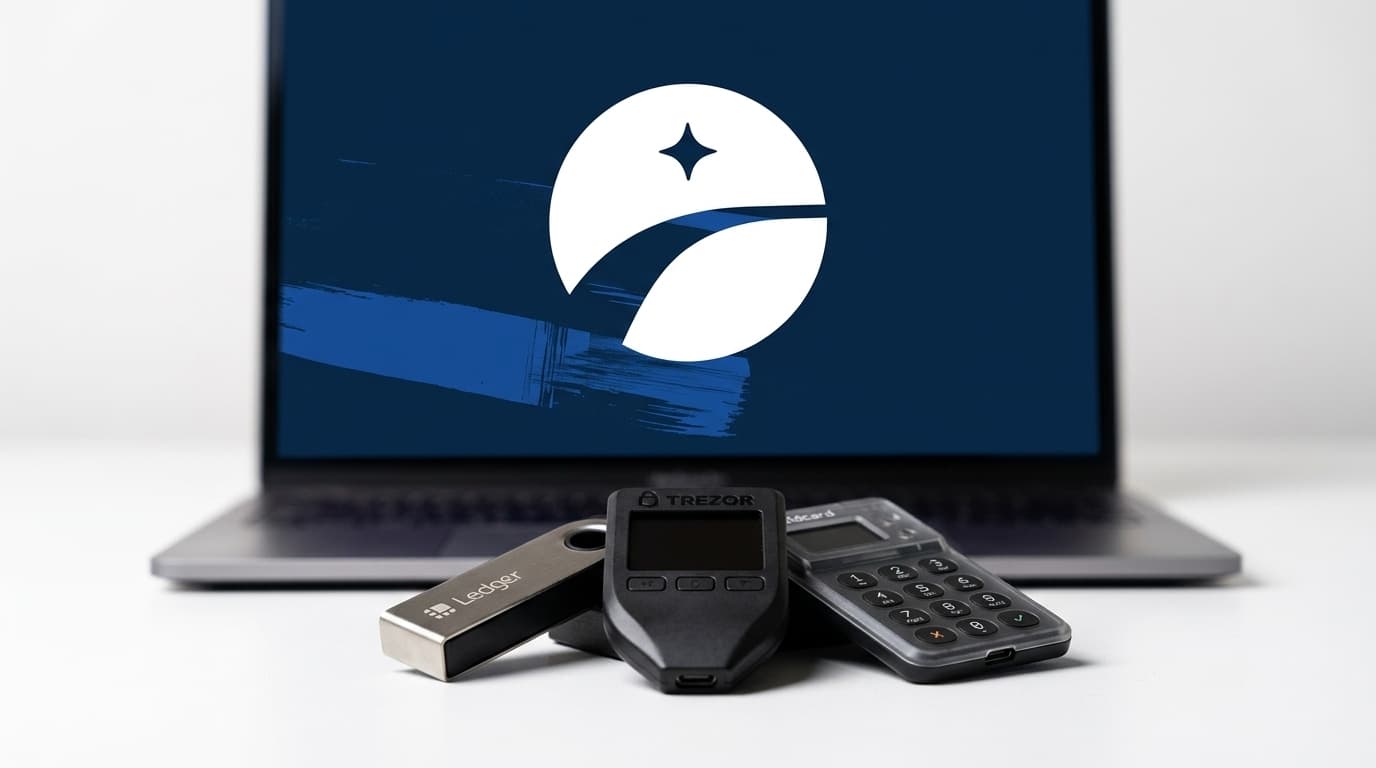
- Two hardware wallets: Unchained supports Ledger, Trezor, and Coldcard devices. You can use different brands for additional redundancy.
- Your existing single-sig wallet: Keep this accessible until the migration completes.
- A secure location for backups: You'll need to store a wallet configuration file and seed phrases for both hardware wallets.
- Time for verification: Don't rush this process. Budget at least an hour for setup and testing.
Good news: if you already own a hardware wallet from your single-sig setup, you can reuse it. The multisig vault derives entirely new addresses, so your existing funds and addresses remain unaffected until you manually transfer them.
Step 1: Create Your Unchained Account
Start at Unchained's website and create an account. You'll go through identity verification since Unchained is a regulated financial services company.
Once verified, you'll have the option to choose between DIY onboarding or concierge onboarding. The concierge option provides guided setup with an Unchained specialist, which can be valuable if you're new to multisig. DIY works fine if you're comfortable with hardware wallet operations.
Unchained also offers different quorum configurations as of 2025-2026, including options like 2S/1A (sovereign, where you hold both signing keys) or 1S/2A (reduced responsibility, where Unchained holds two keys). The standard 2-of-3 with two user keys offers the best balance of control and backup for most holders.
Step 2: Upload Your Public Keys
This step is where people sometimes get nervous, but it's safe. You're sharing extended public keys (xpubs), not private keys. Your xpubs let Unchained generate deposit addresses and monitor your vault balance, but they cannot spend your bitcoin.
Connect each hardware wallet to your computer and follow Unchained's prompts to export the xpub. The process varies slightly by device:
- Coldcard: Export via SD card or USB
- Trezor: Connect via Trezor Suite and authorize the export
- Ledger: Connect via Ledger Live and follow the prompts
Repeat for both hardware wallets. Unchained will add their third key automatically.
Step 3: Build and Pay for Your Vault
With all three public keys registered, Unchained generates your multisig vault. You'll see the address format (typically starting with "bc1q" for native SegWit) and can verify that all three keys are correctly associated.
Pay the annual subscription fee to activate the vault. This covers Unchained's key storage, transaction co-signing services, and customer support.
Step 4: Download and Secure Your Configuration File
This step is critical. Download the wallet configuration file that Unchained generates. This file contains your public keys, derivation paths, and the information needed to reconstruct the vault in wallet software.
Store this file:
- In a password manager
- On an encrypted USB drive
- In a secure cloud backup (encrypted)
Without this configuration file, recovering your multisig setup becomes significantly harder. Treat it with the same care as a seed phrase backup.
Step 5: Transfer Your Bitcoin
Now comes the actual migration. You'll send bitcoin from your old single-sig wallet to your new multisig vault.
Generate a deposit address in your Unchained dashboard. Before sending any significant amount:
- Verify the address on your hardware wallet display, not just your computer screen. This protects against clipboard malware.
- Send a small test amount first. Wait for confirmation and verify it appears in your vault.
- Send the remainder in batches if you're moving substantial funds. This limits exposure if something goes wrong.
Once all funds arrive in your multisig vault, your migration is technically complete. But don't stop here.
Step 6: Test Your Spending Capabilities
A backup you've never tested isn't a backup. Before considering your migration finished, verify that you can actually spend from the vault.
Test these scenarios:
- Spend with both of your keys: Initiate a transaction and sign with each hardware wallet. Send a small amount back to yourself or to another address you control.
- Spend with one key plus Unchained: Contact Unchained support to co-sign a test transaction using your key and their backup key. This confirms their key works and you understand the process.
These tests prove your vault functions correctly before you actually need it.
What Happens to Your Old Wallet?
After transferring all funds, your old single-sig wallet becomes empty. You have a few options:
- Repurpose the hardware wallet as one of your multisig keys (if you haven't already)
- Keep the old wallet available for receiving bitcoin before transferring to multisig
- Wipe it completely if you no longer need it
Don't destroy seed backups for the old wallet until you're absolutely certain no funds remain and no one might send to those addresses.
The Tradeoffs Worth Considering
Collaborative custody isn't free, and it's not for everyone.
The annual fee adds ongoing cost compared to pure self-custody. If you're comfortable managing your own multisig setup without institutional backup (using tools like Sparrow Wallet or Caravan), you can achieve similar security for just the cost of hardware.
You're also trusting Unchained to remain operational and responsive. They've built a solid reputation since 2018, but any third party introduces some counterparty consideration. The 2-of-3 design mitigates this since you can always spend with just your two keys, but Unchained's backup key only helps if they're around to use it.
For many bitcoin holders, especially those with significant savings or complex inheritance needs, these tradeoffs favor collaborative custody. You get professional backup, potential access to bitcoin-backed loans without selling, and the peace of mind that comes from eliminating single points of failure.
Moving Forward
Once your vault is active and tested, you've meaningfully upgraded your bitcoin security. The immediate next steps:
- Store your hardware wallets in separate physical locations
- Ensure trusted family members know how to contact Unchained if needed
- Review Unchained's inheritance planning options for long-term security
Unchained has been exploring more dynamic custody models throughout 2026, moving beyond static vault configurations. As these develop, collaborative custody will likely become even more flexible. For now, the 2-of-3 multisig vault represents a proven, practical upgrade from the single points of failure that make single-sig storage risky for meaningful bitcoin holdings.