
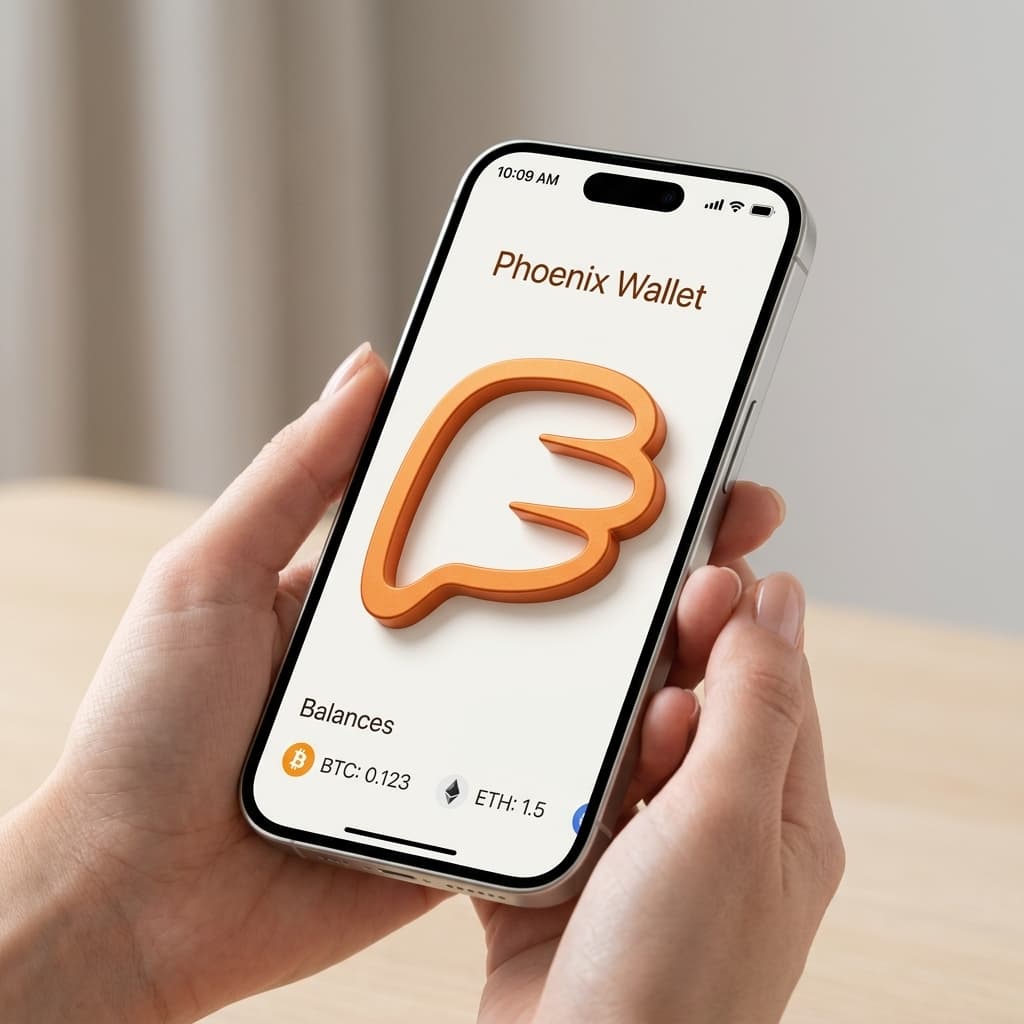
How to Set Up Phoenix Wallet for Lightning Payments Without Channel Headaches
Step-by-step guide to setting up Phoenix wallet, making your first Lightning payment, and understanding how automatic splicing eliminates channel management.
Lightning Network payments should feel as simple as tapping a phone. For years, they didn't. Managing channels, worrying about inbound liquidity, and calculating routing paths turned a promising payment technology into a hobby for the technically inclined.
Phoenix takes a different approach. Instead of asking you to become a Lightning expert, it handles channel management automatically through a technique called splicing. You see one balance. You send and receive Bitcoin. The wallet does everything else.
Here's how to get started, what to expect when automatic splicing kicks in, and how to avoid the few remaining gotchas.
What Makes Phoenix Different
Most Lightning wallets require you to open channels manually, decide how much capacity to allocate, and sometimes close channels when liquidity gets stuck on the wrong side. Phoenix eliminates all of this by running a full Lightning node on your phone with a single dynamic channel connected to ACINQ's node.
When you need more capacity (either for sending or receiving), Phoenix uses splicing to resize that channel on-chain without closing it. This happens automatically. You'll see a fee estimate before confirming, but you won't need to understand the mechanics unless you want to.
The wallet also consolidates your on-chain and Lightning balances into one view. There's no mental juggling of separate wallets or worrying about which balance to use for which payment.
Setting Up Phoenix Step by Step
Download and Create Your Wallet
Phoenix is available for iOS and Android. Download it from the official app store for your device. When you first open the app, you'll be asked to create a new wallet or restore an existing one.
Choose "Create a new wallet." Phoenix will generate a 12-word recovery phrase. This is critical: write these words down on paper and store them somewhere secure. Never screenshot them, email them, or store them in a notes app. If you lose your phone, this phrase is the only way to recover your funds.
Once you've confirmed your recovery phrase, Phoenix will set up your Lightning node. This takes a few seconds.
Secure Your Wallet
Before adding any funds, enable biometric lock (Face ID, fingerprint, or PIN depending on your device). This prevents someone who picks up your phone from immediately accessing your Bitcoin.
Phoenix stores encrypted channel-state backups on ACINQ's servers, but only you hold the encryption key (derived from your seed phrase). This means you can recover your channel state on a new device without trusting ACINQ with your actual funds.
Make Your First Deposit
To activate your Lightning channel, you need to receive some Bitcoin. Tap the receive button, and Phoenix will show you options: Lightning invoice, BOLT12 offer, or on-chain address.
For your first deposit, you'll likely use an on-chain address if you're moving Bitcoin from an exchange or cold storage. Phoenix recommends depositing at least 10,000 satoshis (0.0001 BTC) to cover the on-chain fees for opening your channel.
When Bitcoin arrives at your Phoenix on-chain address, the wallet automatically opens a Lightning channel. You'll see the mining fee deducted from your deposit, and then your balance appears, ready for Lightning payments.
Understanding Phoenix's Fee Structure
Phoenix charges a flat 0.4% plus 4 satoshis for outgoing Lightning payments. This covers routing and keeps the pricing predictable.
For incoming Lightning payments, once your channel is open, there's typically no additional fee. However, if an incoming payment requires more capacity than your channel currently has, Phoenix will splice the channel larger. This triggers an on-chain transaction with mining fees.
Before any on-chain fee is charged, Phoenix shows you an estimate and asks for confirmation. You won't be surprised by hidden costs.
When Automatic Splicing Kicks In
Splicing is what makes Phoenix feel simple. Here's when it happens:
Receiving more than your inbound capacity: If someone tries to send you more sats than your channel can handle, Phoenix automatically resizes. You'll see a prompt showing the mining fee required.
Sending to an on-chain address: Phoenix supports "splice-out" transactions, letting you send Bitcoin to regular on-chain addresses directly from your Lightning balance. This triggers an on-chain transaction.
Adding funds via on-chain deposit: Sending Bitcoin to your Phoenix on-chain address automatically splices those funds into your existing channel (or opens one if you don't have one yet).
The key insight: splicing modifies your channel without closing it. Classic Lightning wallets would require closing the old channel, waiting for confirmations, then opening a new one. Phoenix does this in a single transaction.
Making Your First Lightning Payment
With your channel funded, sending a Lightning payment is straightforward. Tap send, then either scan a Lightning invoice QR code or paste one from your clipboard.
Phoenix supports both traditional BOLT11 invoices (the most common type) and newer BOLT12 offers. BOLT12 offers are reusable payment requests, useful if someone gives you a static address for tips or recurring payments.
Before confirming, you'll see the amount, the 0.4% + 4 sat fee, and the recipient. Confirm, and the payment completes, usually in under a second.
Receiving Lightning Payments
To receive, tap the receive button and choose Lightning. Phoenix generates an invoice with the amount you specify (or a zero-amount invoice if you want the sender to choose). Share the QR code or copy the invoice text.
Because Phoenix uses Trampoline routing, you don't need to worry about publishing your node or managing routing hints. ACINQ's infrastructure handles finding a path to you.
One privacy consideration: if you enable Tor in Phoenix's settings, your connection is routed through the Tor network. This improves privacy but can slow connection times and may require keeping the app in the foreground while waiting for payments.
Avoiding Common Mistakes
Don't repeatedly send small amounts on-chain
If you frequently splice out to on-chain addresses (say, to move funds to cold storage), you'll pay mining fees each time and gradually shrink your channel capacity. A better approach: accumulate Lightning funds, then do a single larger splice-out when you want to move to long-term savings.
Don't let the channel get too small
If you drain your channel down to a few hundred sats, receiving new payments may require opening fresh capacity, triggering fees. Keep a working balance in the channel for flexibility.
Do understand that channel fees appear on some incoming payments
If someone sends you a payment that exceeds your current inbound capacity, Phoenix will prompt you to approve the splice fee before accepting. This is transparent, but it can confuse first-time users who expect receiving to always be free.
When Phoenix Makes Sense
Phoenix fits a specific use case well: you want Lightning's speed and low fees, you want self-custody, and you don't want to manage channels manually.
It's excellent for everyday spending at Lightning-enabled merchants, receiving tips or small payments, and using Bitcoin as actual money rather than just holding it. The automatic splicing means you can start small and grow your channel as needed.
For users prioritizing absolute minimum fees or maximum privacy, there are tradeoffs. Phoenix's 0.4% fee is higher than running your own Lightning node with self-managed channels. And because you're connected to ACINQ's node, they can see your payment activity (though they can't take your funds).
But for convenience and reliability without giving up your keys, Phoenix hits a compelling balance.
Moving Forward
Once you're comfortable with basic send and receive, explore Phoenix's advanced features. BOLT12 offers let you create reusable payment addresses. The swap feature lets you move between Lightning and on-chain without external services. Custom mining fee settings give you control when network fees spike.
The recovery phrase you wrote down during setup works even if ACINQ disappears. Your Bitcoin remains yours.
Lightning doesn't have to be complicated. With the right wallet, it's just Bitcoin that moves faster.